
Updated 12 June 2026
If you’re investing for dividend income, one of the most frustrating things is not knowing exactly when your next payment is coming in, or which stocks are actually contributing to your income each month.
On top of that, you might have a yield target in mind but no easy way to see whether your actual portfolio is hitting it.
Your broker shows you the payments after they land, and the yield of individual stocks, but it doesn’t give you a clear picture of what’s coming up, overall portfolio yield, which months are light, or whether your income is actually growing over time.
If you have a well-diversified portfolio, you might have something like 10, 20, 30, or even more companies all paying on different schedules. You end up either missing payments entirely, scrambling to check each stock one by one, or building a spreadsheet that takes longer to maintain than it’s worth.
What most dividend investors actually want is simple: a clear view of their yield, what’s coming in, when it’s arriving, and whether the income is growing.
Here’s a tool that gives you exactly that.
Simply Wall St Helps You Track Your Portfolio
Simply Wall St is a stock analysis platform with a dividend tracker built directly into your portfolio. Once you link your broker, it answers every question the previous section raised.
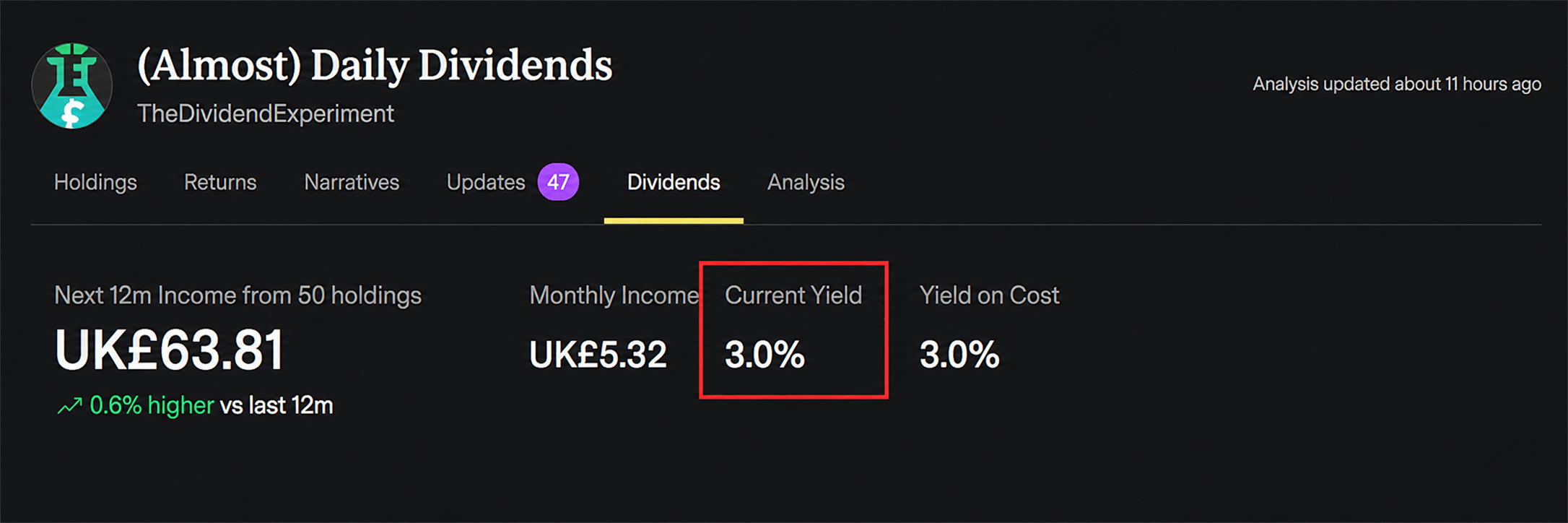
Your live portfolio yield is calculated automatically and updated as prices and payouts change. It shows your actual yield, always current, so you know exactly where you stand against your target.
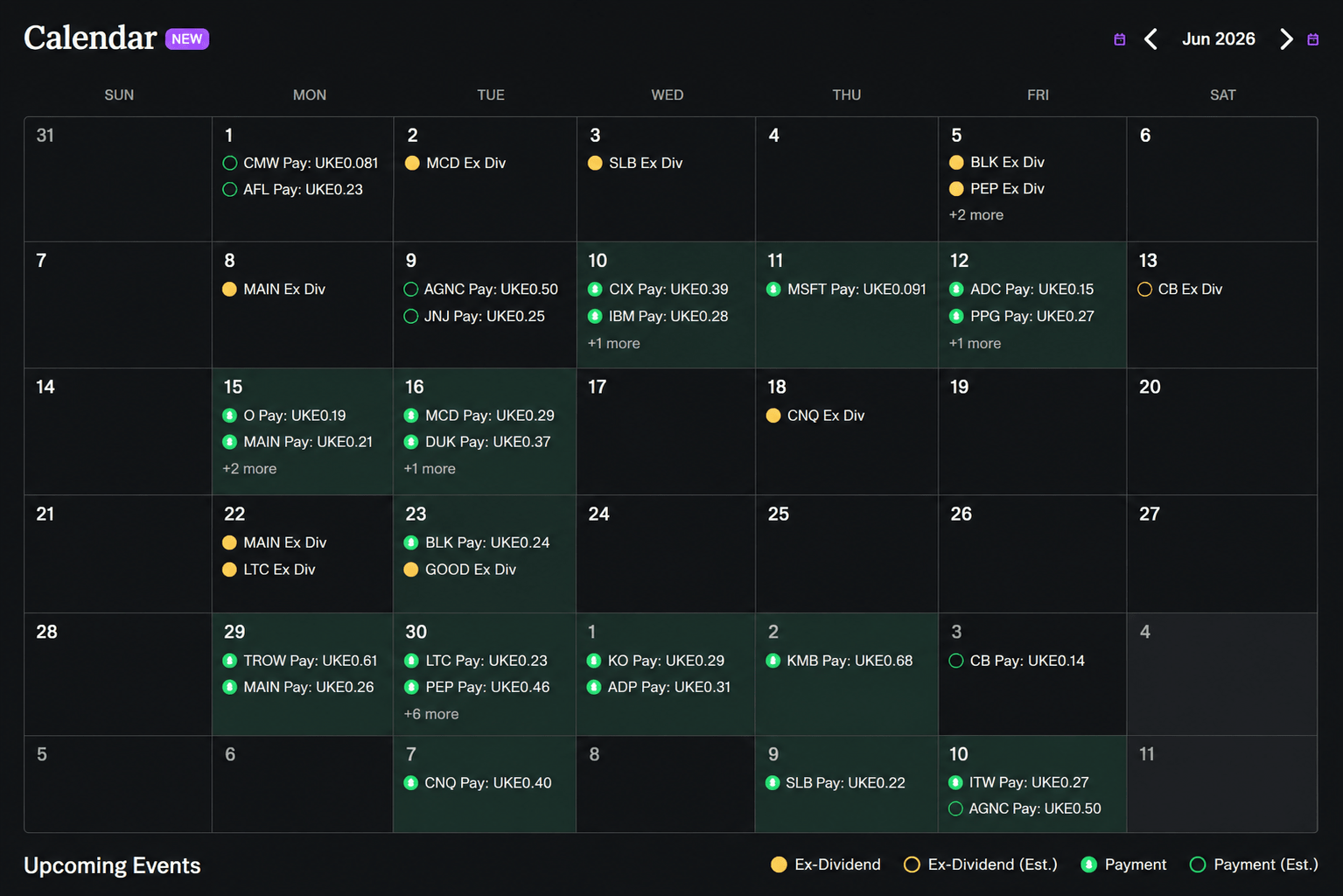
A dividend calendar maps out every upcoming ex-dividend date and pay date across all your holdings. You can see exactly when money is due to hit your account for every stock you own, laid out visually by month. No more guessing or checking each stock one by one.
Your dividend history is broken down month by month, showing you which months are heavy and which are quiet. If you’re planning to live off dividend income, knowing when the money arrives helps you schedule around your lifestyle.
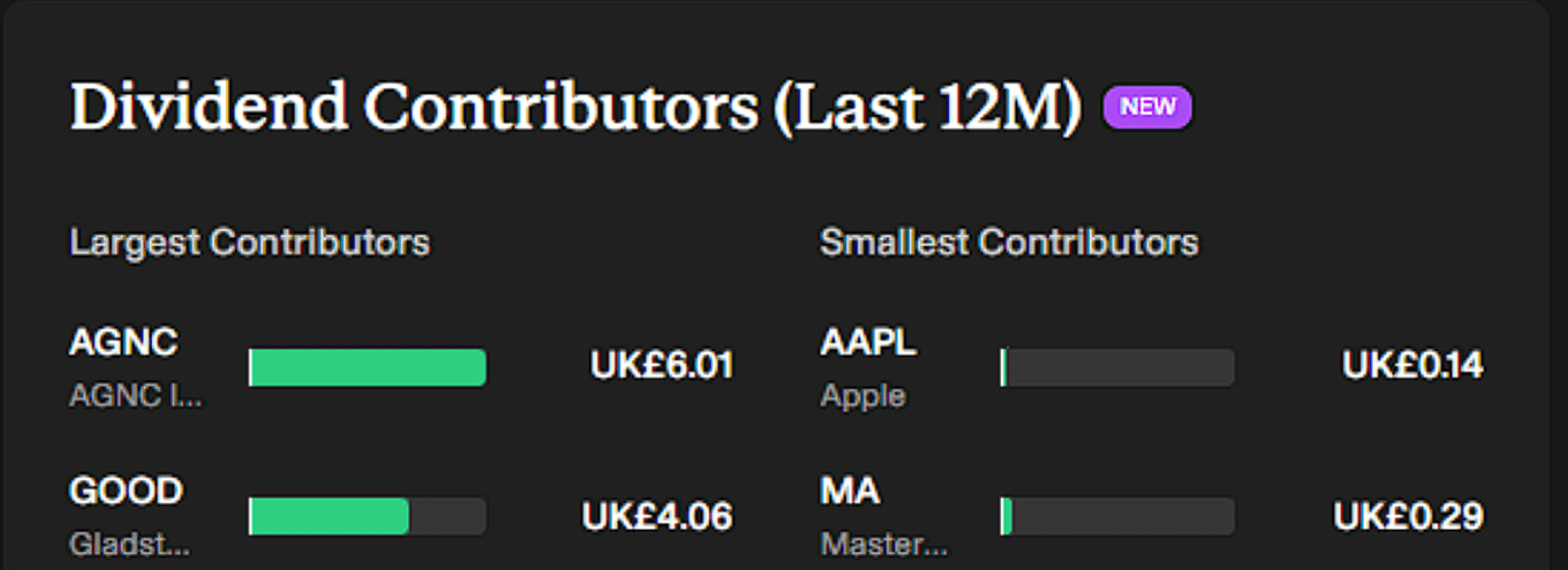
Dividend Contributors show which stocks are generating the most income and which are barely pulling their weight. If 80% of your income is coming from just a handful of stocks, that’s a concentration risk worth knowing about.
In simple terms. Simply Wall St. helps track your portfolio without checking every stock manually.
You can sign up to Simply Wall St using our referral links on this page. It won’t cost you anything extra and it helps support the channel too.
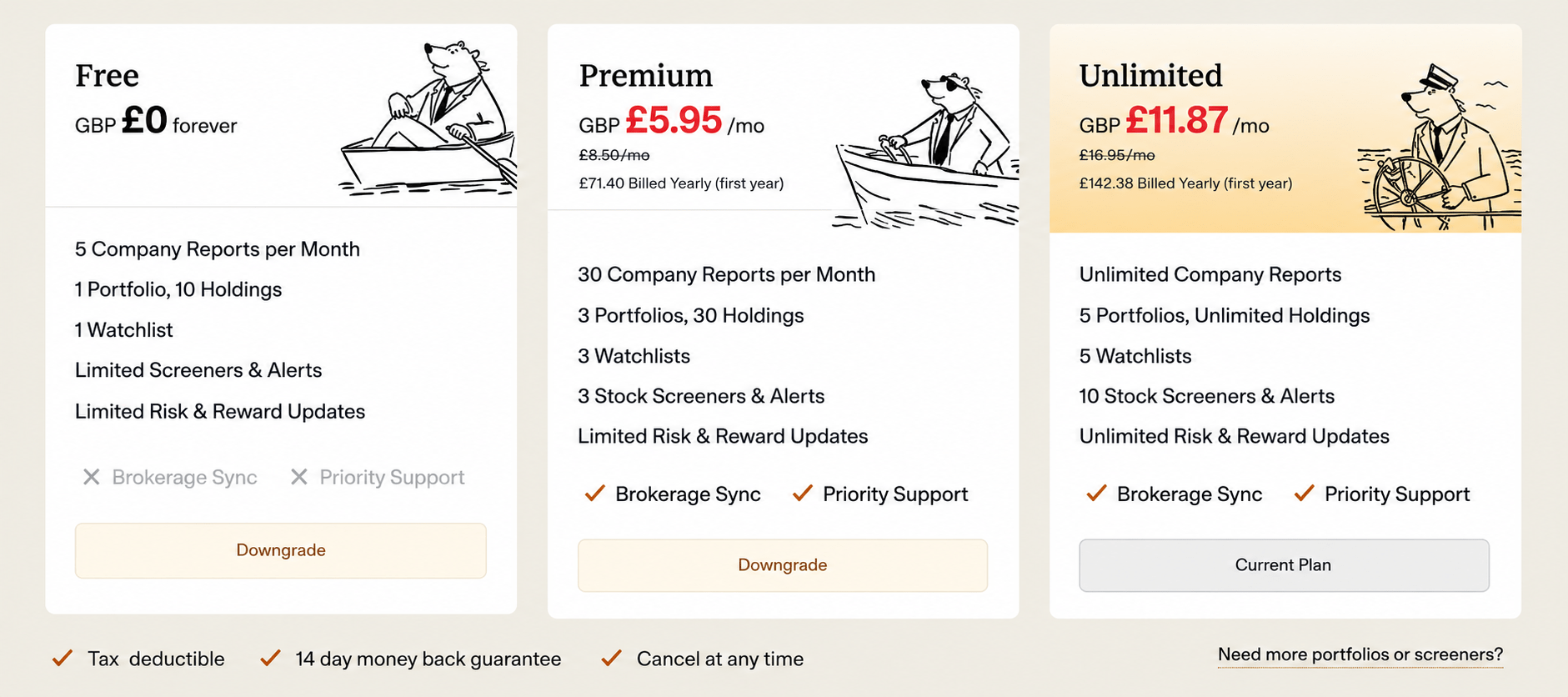
Simply Wall St does have a free plan, but to access the full dividend tracker, including the calendar, yield on cost, and forecasts, you’ll need a Premium or Unlimited subscription. You can view the plans here
Simply Wall St is also used to track the portfolio featured in the Almost Daily Dividends series. In the series, £100 is invested each week, with weekly YouTube updates shared as the portfolio grows. Check out the latest update to see how it is progressing.
How to Link Your Investment Platform to Simply Wall St
To Track Your Portfolio automatically, you first need to connect your broker to Simply Wall St. In this example, we’ll use Trading 212 because it is the most popular broker in our community.
Once linked, your portfolio syncs automatically every day so everything stays up to date.
Here is exactly how to do it.
Part 1: Generate Your API Key in Trading 212
The first step to Track Your Portfolio is creating an API key inside Trading 212.
This part is done inside Trading 212. You are creating the access code that Simply Wall St will use to read your portfolio.
You can complete this part before starting the Simply Wall St connection process, or you can do it while following the instructions in Simply Wall St.
Step 1: Open Your Trading 212 Account
Open your Trading 212 account, the rest of these instructions can be done either on the phone or on the desktop app, so it’s your own preference.
Step 2: Open the Menu and Look for Settings
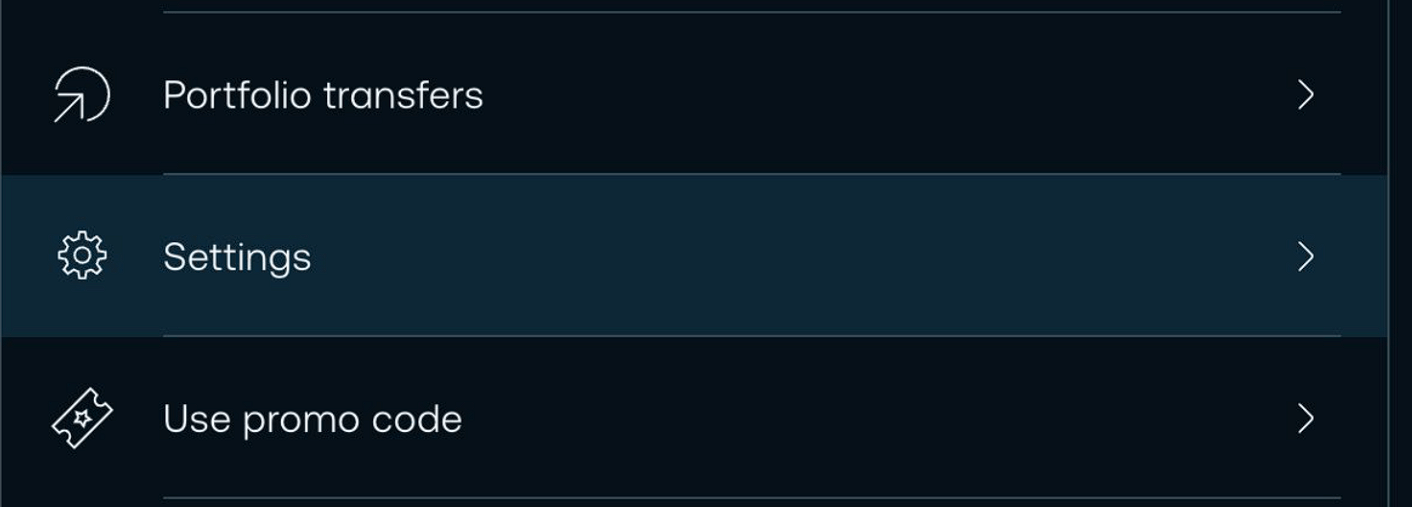
Look for the icon that looks like three horizontal lines stacked on top of each other. Click or tap it.
Then scroll down to Settings and enter that menu.
Step 3: Find the API Section
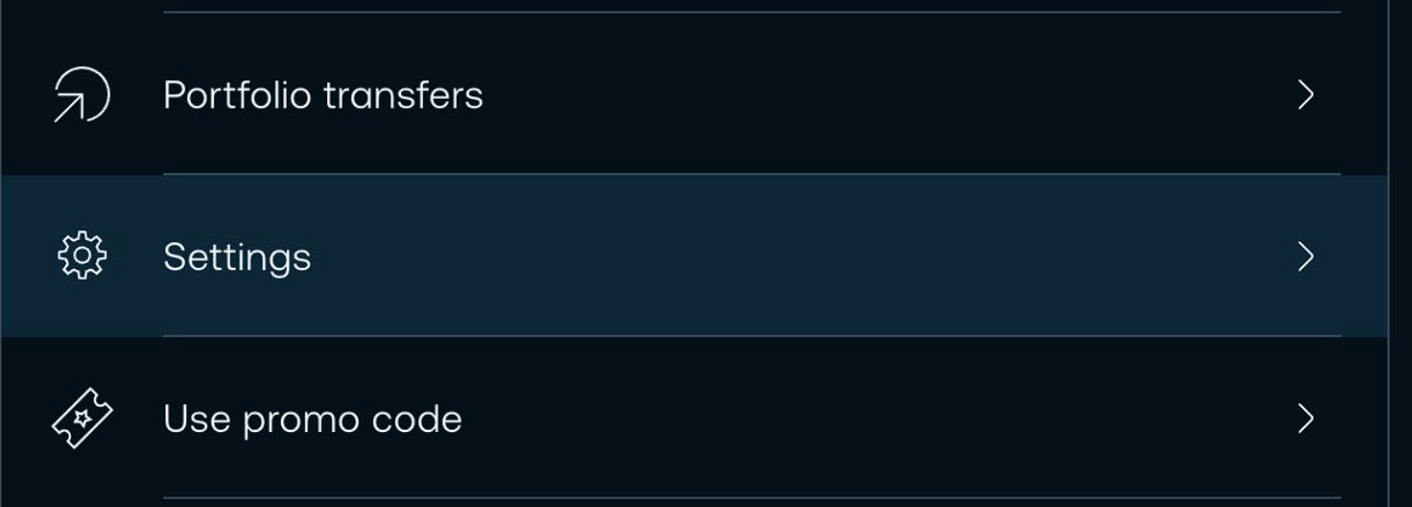
Once inside Settings, look at the left side of the screen for an option called API or API (Beta). You may need to scroll down to find it.
Step 5: Fill out the New API Key form.
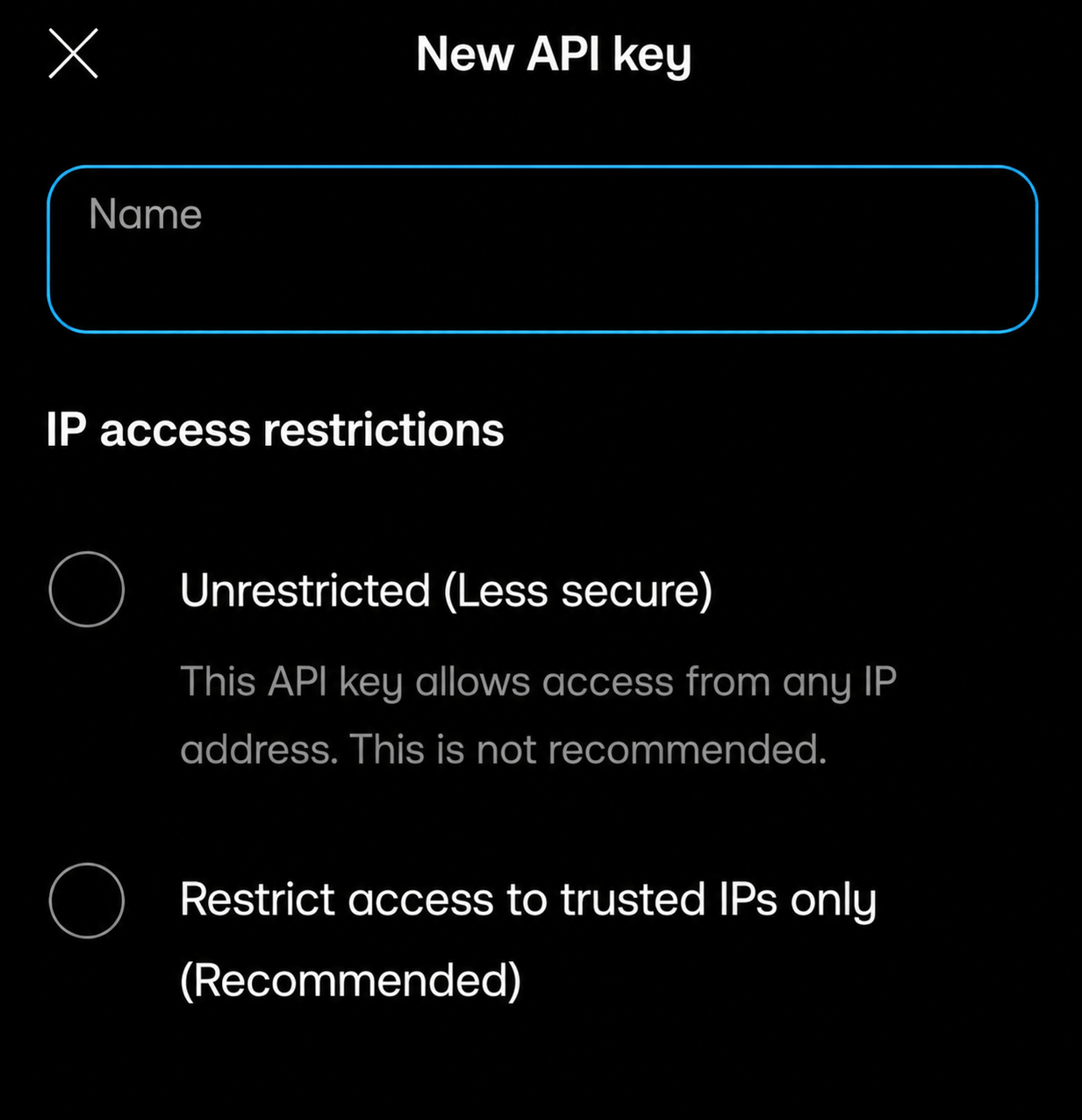
You’ll now see the New API Key form. Fill it out by giving your API key a clear name, such as Simply Wall ST, or whatever you want, so you can easily remember what it is for later.
You’ll also see an option for IP access restrictions. This controls where the API key can be used from.
Unrestricted means the API key can be used from any IP address. Trading 212 labels this as less secure, but it is usually the simpler option when connecting to a third-party service, especially if you do not know which IP address the service will use.
Restricted to trusted IPs means the API key can only be used from specific IP addresses you approve. This adds extra security, but it may cause connection issues if the service uses changing or unknown IP addresses.
Step 5: Generate an API Key
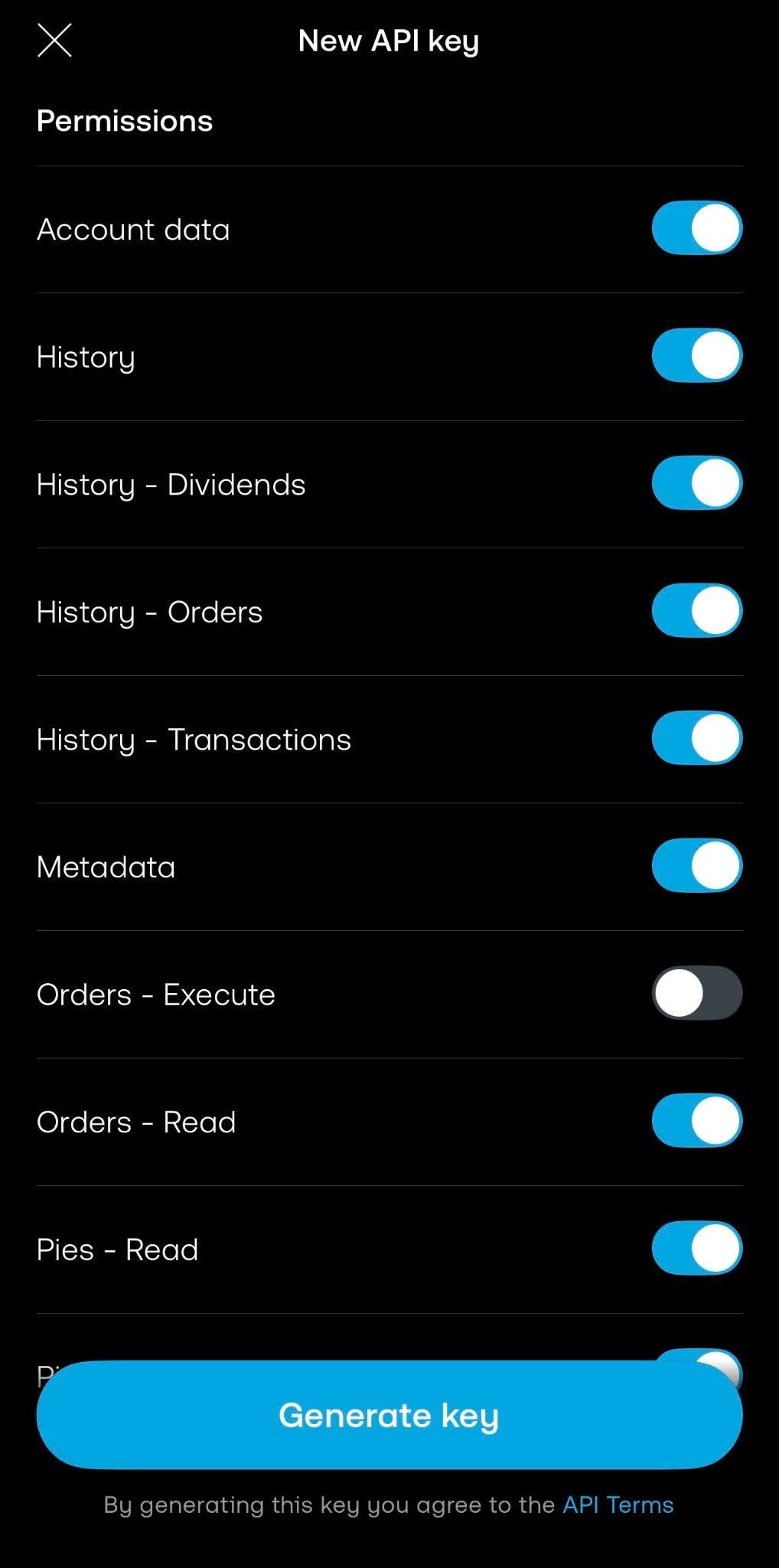
Click Generate API Key, then follow the prompts shown on screen. When choosing permissions, enable all options except “Orders – Execute.”
This shall keep the connection read-only, so Simply Wall St can sync your portfolio data without being able to place trades.
Step 6: Submit the form to generate your keys.
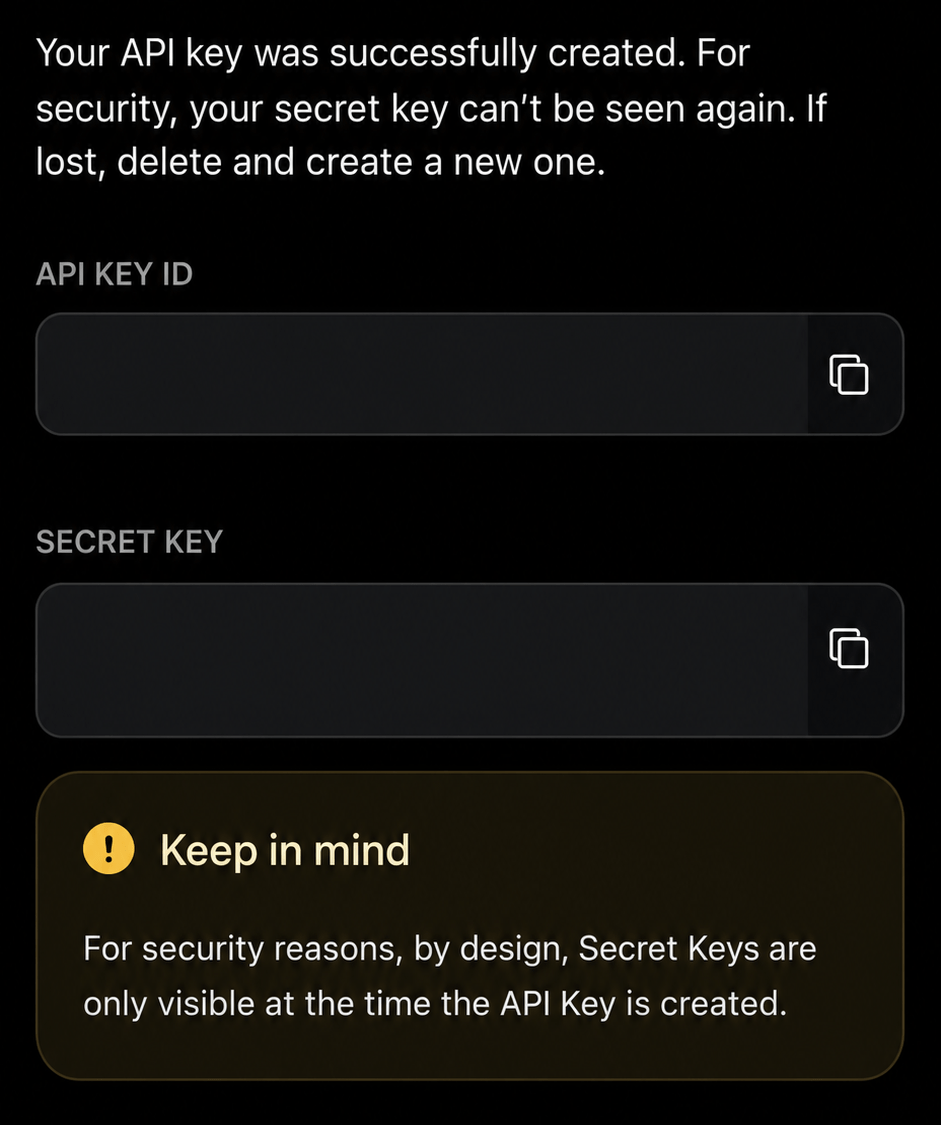
After generating the key, Trading 212 will show you two codes:
API Key ID – This is the main code you will paste into Simply Wall St.
Secret Key – This is a private code linked to your API access.
Important: The Secret Key may only be shown once. As soon as you leave this screen, you may never be able to see it again. Before doing anything else, copy both codes and save them somewhere safe, such as a notes app or password manager. If you lose the Secret Key, you will need to delete this key and generate a new one from scratch.
Once you have copied both codes, you are done all you need to for now with Trading 212.
Now move on to Part 2.
Part 2: Connect Your Portfolio in Simply Wall St
Now you’ll paste the API key into Simply Wall St so it can connect to your Trading 212 account. This allows Simply Wall St to read your portfolio data, sync your holdings, and keep everything updated automatically.
Step 1: Log In to Simply Wall St
Go to simplywall.st and log in to your account. Don’t forget that only Premium and Unlimited subscriptions have the brokerage sync service
Step 2: Go to “Portfolios”

At the top of the page, you’ll see a navigation bar with different sections. Look for the word Portfolios and click on it.
Step 3: Click “New Portfolio”

On the Portfolios page, look for a button in the top-right corner that says New Portfolio (or + New Portfolio). Click it.
Step 4: Choose Trading 212 as a Broker
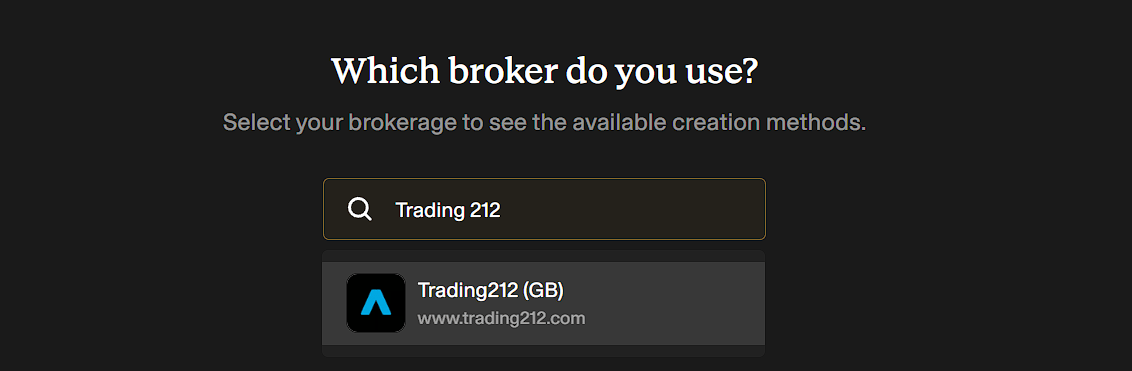
After clicking New Portfolio, you’ll see a search bar asking you to type which broker you use. In this case, type Trading 212 in the search bar.
Step 5: Connect Your Portfolio
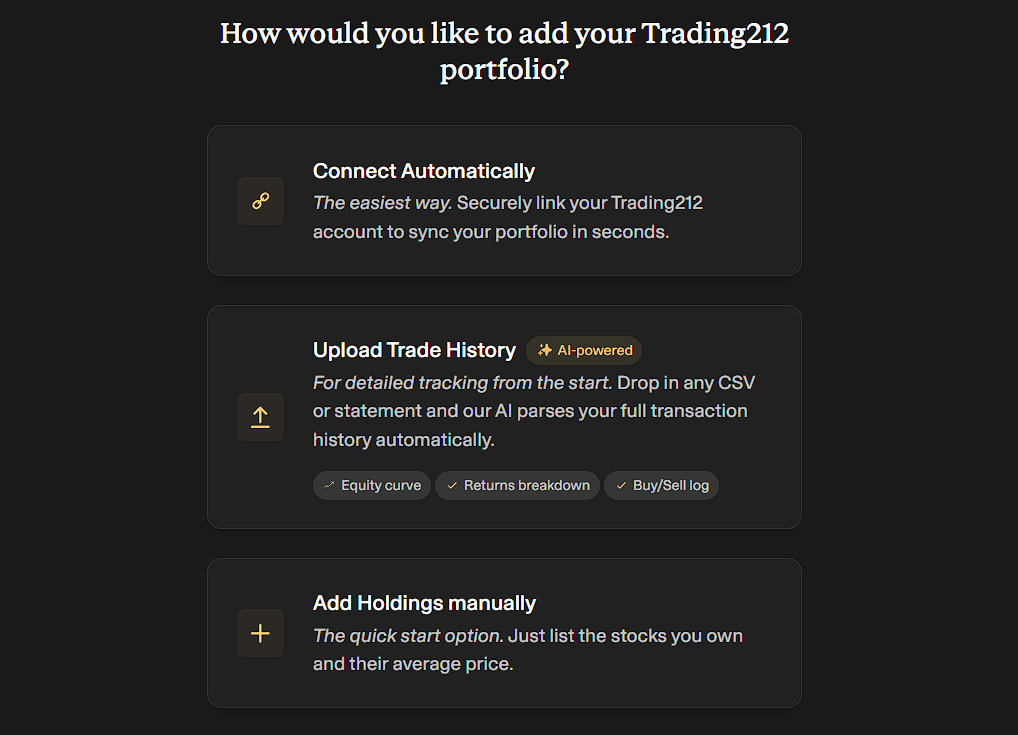
You’ll be asked how you would like to add your Trading 212 portfolio, and will be given 3 options. For this, we want to connect automatically, as it is the only way to link your Trading 212 account in seconds.
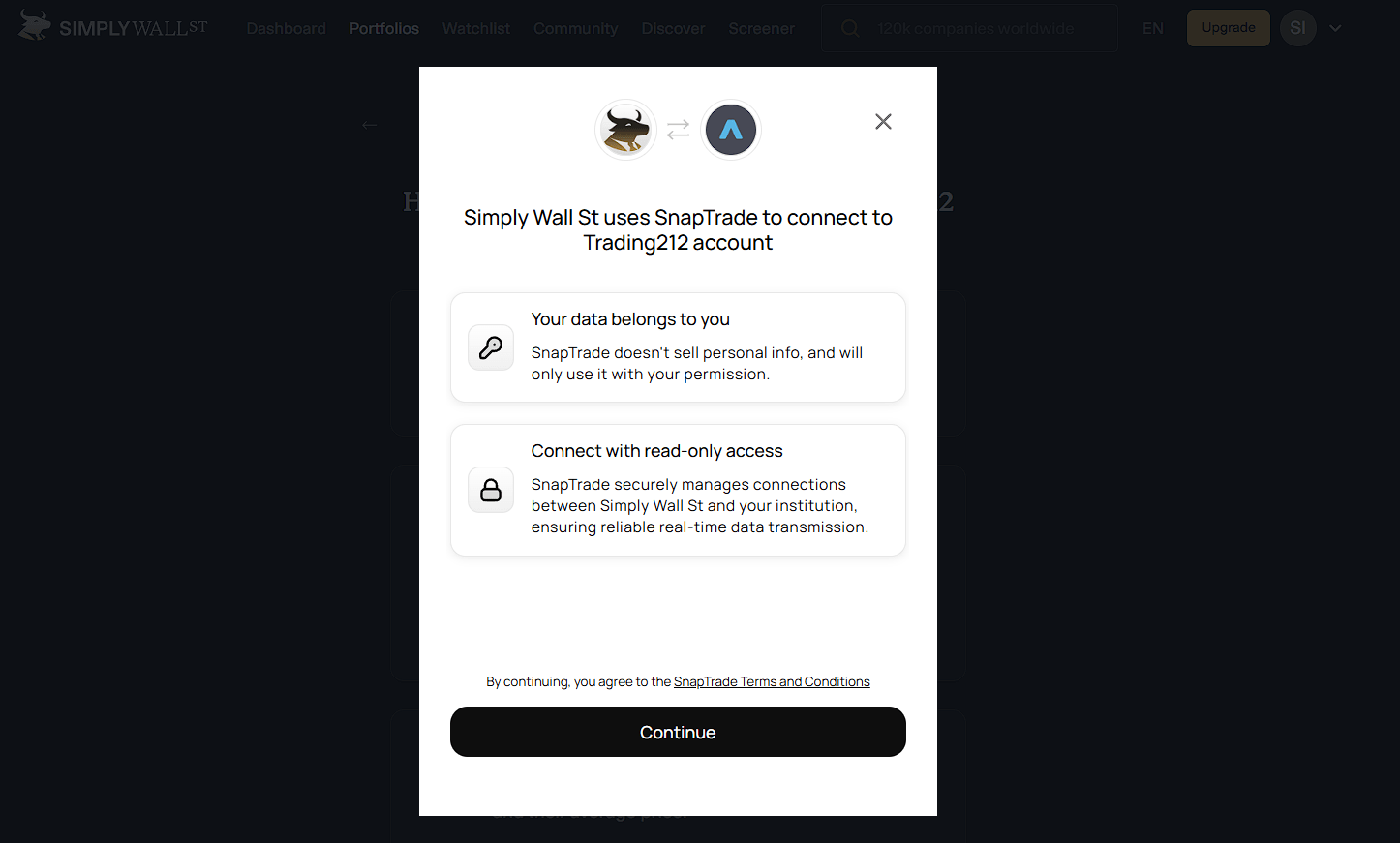
After choosing Connect Automatically, a SnapTrade pop-up will appear. This notice explains that Simply Wall St uses SnapTrade to connect to your Trading212 account.
It confirms that your data belongs to you, SnapTrade will only use your information with your permission, and the connection is read-only, meaning Simply Wall St can view your account data but cannot make changes or place trades.
You will need to click Continue to move forward.
Step 6: Follow the Trading 212 API Key Instructions
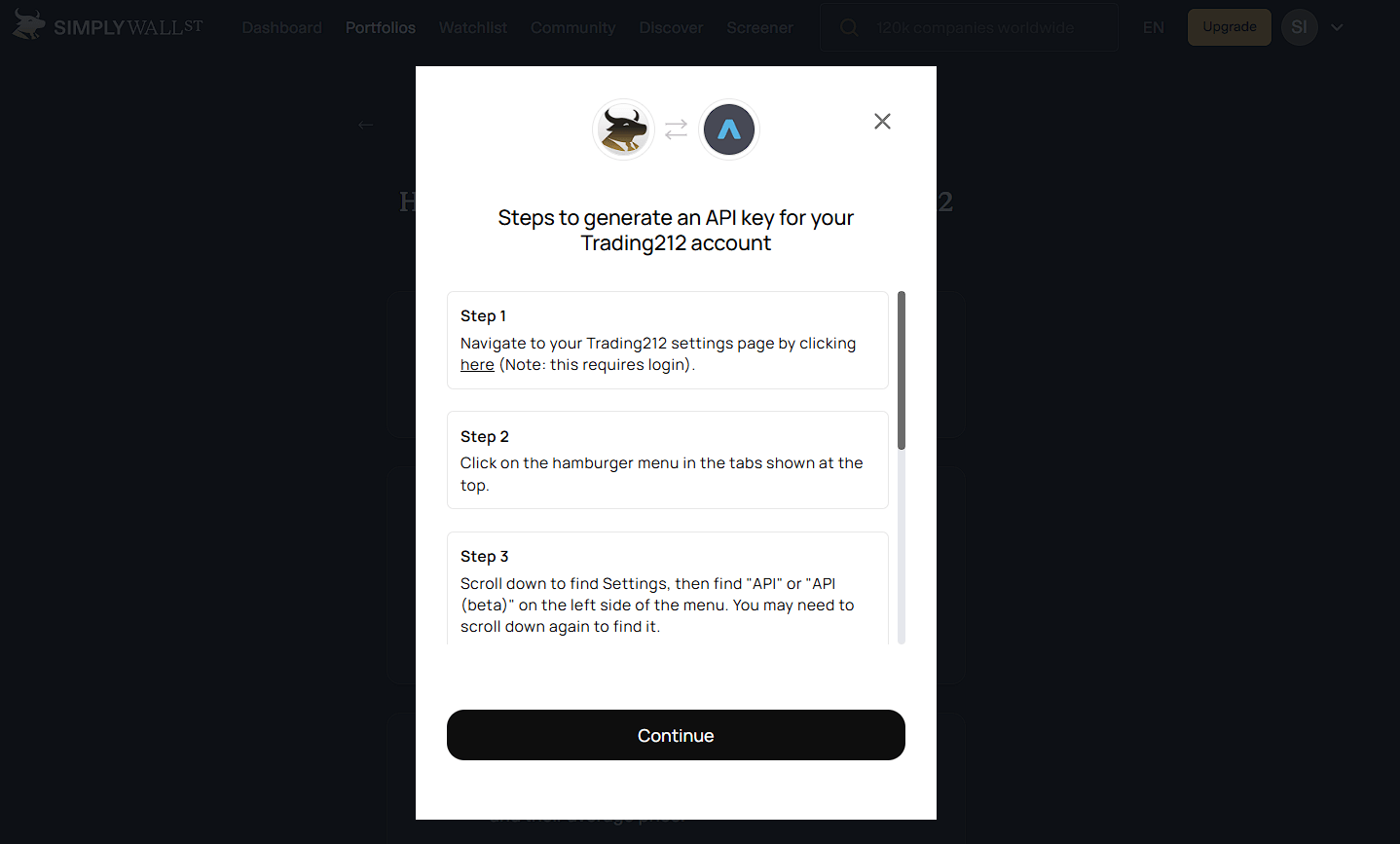
A pop-up will appear in Simply Wall St with instructions on how to generate your Trading 212 API key.
You’ll need to create an API key and copy both the API Key ID and Secret Key so you can paste them into Simply Wall St.
And since you already generated your API key from Trading 212 in Part 1, Click on Continue.
Step 7: Enter Your API Key
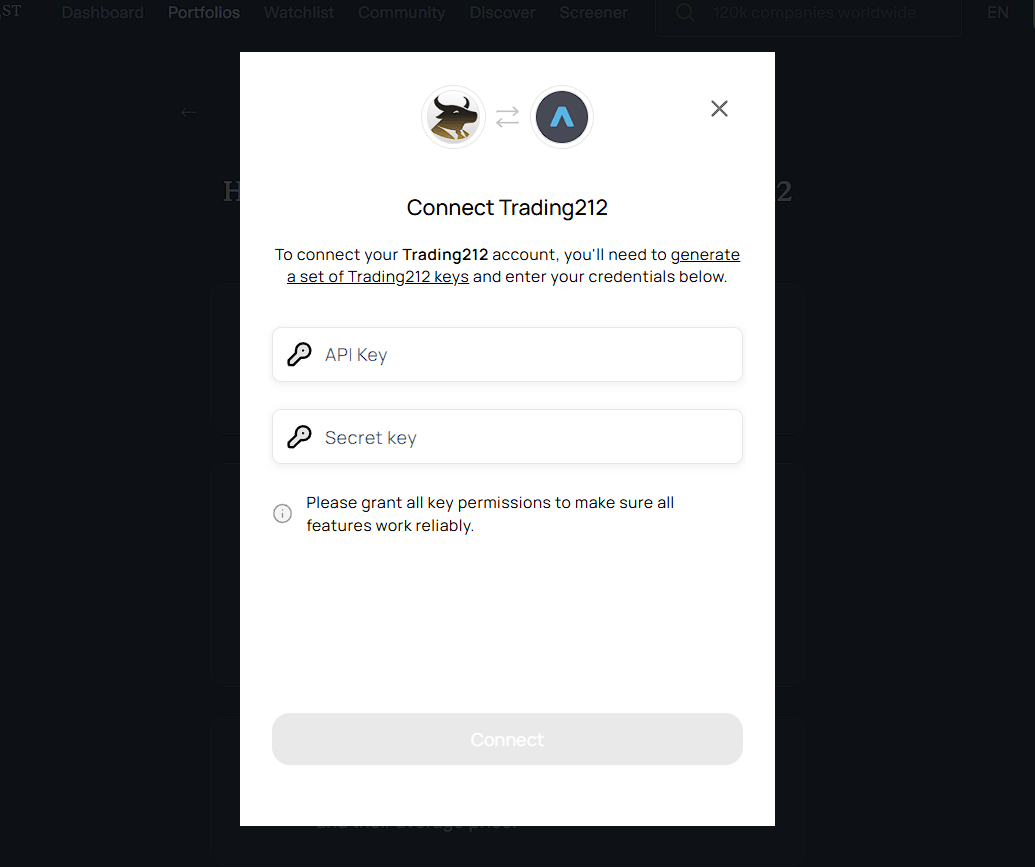
You’ll now see a form asking you to enter your credentials. This is where you paste the codes you saved in Part 1.
- In the first field (usually labelled API Key), paste your API Key.
- If there’s a second field (usually labelled Secret Key or API Secret), paste your API Secret Key there.
Once done, just tap “Connect”
Step 8: Wait for Your Portfolio to Sync
Simply Wall St should start pulling your portfolio data from Trading 212. From there, you’ll be able to Track Your Portfolio inside Simply Wall St.
This can take anywhere from a few minutes to a few hours, depending on how many holdings you have.
Don’t worry if your stocks don’t appear straight away. Come back in a few hours and they should all be there. After this first sync, your portfolio should update automatically each day without you needing to do anything.
What You’ll See Once It’s Done
Once your portfolio has synced, head to the Portfolios tab in Simply Wall St and click on your Trading 212 portfolio. You should be able to see:
- The stocks you hold in the Trading 212 account you connected (ISA or Invest, not both)
- An analysis of each stock’s health, valuation, and dividends
- Your overall dividend yield and income history
- Upcoming dividend payments and forecasts
From here, Simply Wall St should handle updates automatically. You can track your portfolio whenever you want.
Conclusion
Once everything is connected, Simply Wall St gives you a simple way to Track Your Portfolio without updating a spreadsheet by hand. If anything ever stops syncing, try reconnecting your account or generating a new API key.
If you got stuck at any point, the most common cause is a missing or incorrectly copied API key. Go back to Trading 212 > Settings > API (Beta), generate a new key, and try again.
FAQ
How often does Simply Wall St update my portfolio?
Once linked, your portfolio should sync automatically at least once per day. Changes you make in Trading 212 may take a few hours to appear in Simply Wall St.
I can’t find API (Beta) in Trading 212 Settings
The API feature is still in beta and may not be available to all accounts. If you don’t see it in Settings, your account may not have been included in the rollout yet.
There is currently no way to request early access. Also make sure you’re on a live Invest or Stocks ISA account, as the API section does not appear on demo accounts or CFD accounts.
My portfolio still hasn’t appeared after several hours
Try disconnecting and reconnecting the broker. In Simply Wall St, go to your portfolio settings, remove the linked broker, and go through the connection steps again.
Does Simply Wall St work with brokers other than Trading 212?
Yes. Simply Wall St supports a wide range of brokers. Trading 212 is used as an example here because it’s the most popular in our community, but you can search for your broker when setting up a new portfolio. If yours isn’t listed, you can also add holdings manually.
Does the dividend calendar update automatically if a company changes its dividend?
Simply Wall St pulls live data, so if a company raises, cuts, or cancels a dividend, the calendar and forecasts should reflect that change once the data is updated on their end.